Posted by Rose Bush on December 6th, 2012
This article is specific to version 7, but the workflow is very similar on previous versions and likely to be similar on later versions.
From within the SmarterStats Interface, click on New:
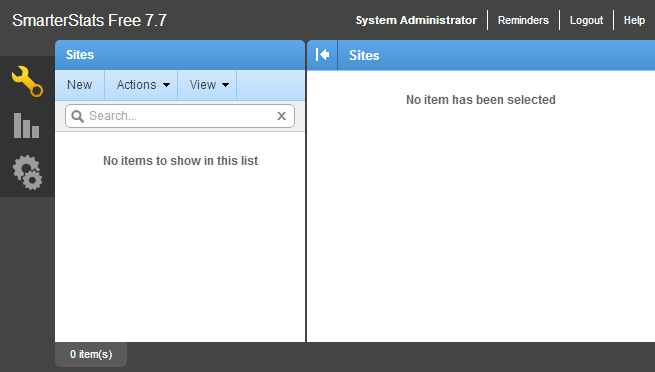
You will be given a new window for creating a site:
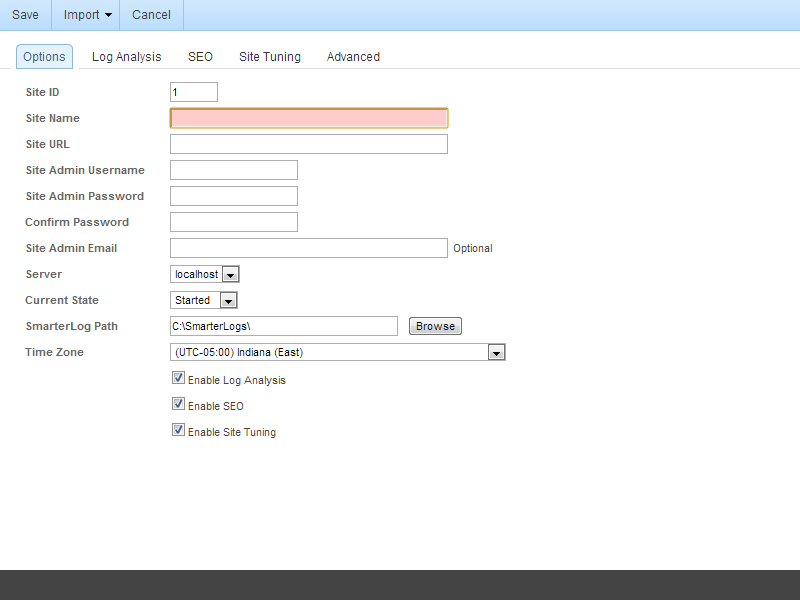
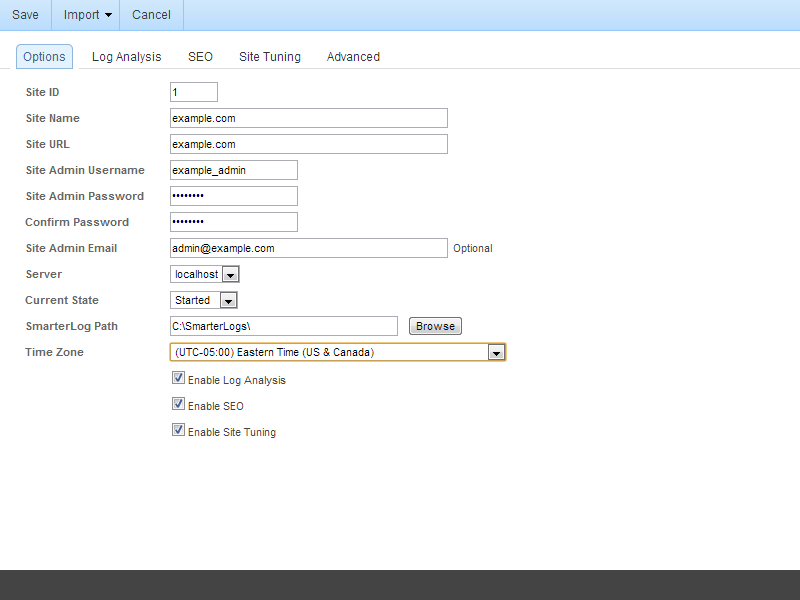
I have filled in an example site and its associated Options below:
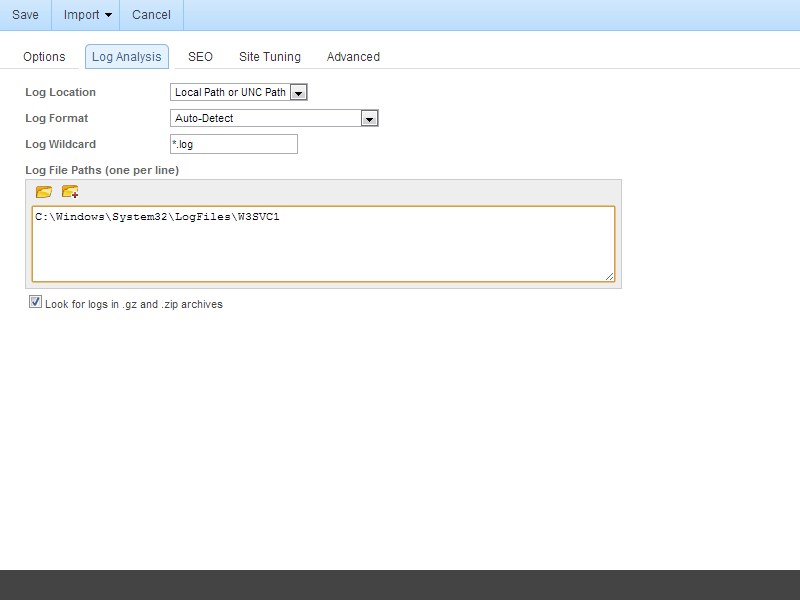
Click on Log Analysis. Here you can tell SmarterStats where the raw logs, and with the below check box, archived logs are located on the Local Machine. If you need to connect to a remote location, you have a few options to you I will review in a separate article. I believe those setup options to be more in depth than the standard setup. In the screen blow, I have set the Log File Paths (one per line) to the default log file location for a site running under IIS.
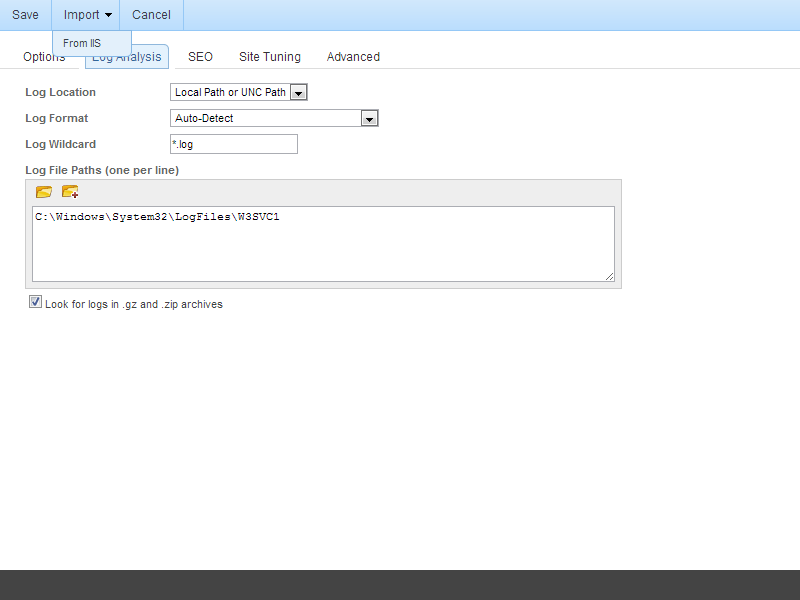
In some cases, you can use the Import > From IIS feature to import this setting. This may be easier for sites hosted on the same server as the SmarterStats application.
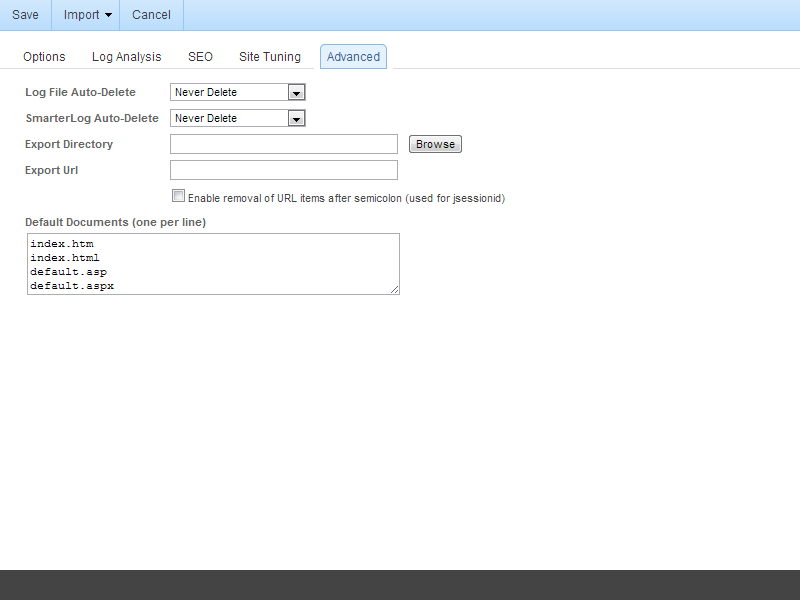
Click on the Advanced tab. I want to note that on this tab you will see the default documents that SmarterStats will be looking for within the logs. This list is rather short, you can expand it from:
index.htm
index.html
default.asp
default.aspx
To:
index.htm
index.html
index.cfm
index.cfmx
index.php
index.cgi
default.htm
default.html
default.cfm
default.cfmx
default.php
default.cgi
Once done on this screen, click Save.
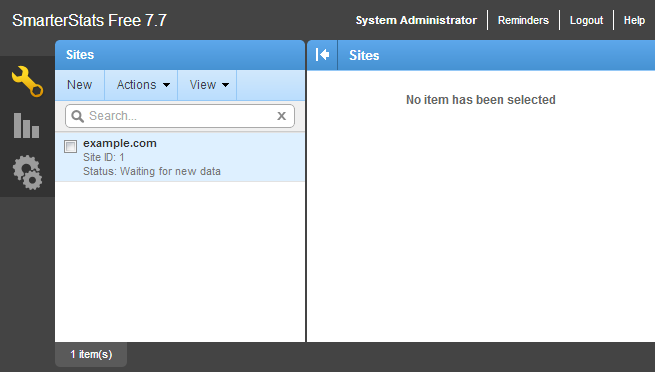
Here is my newly created site, it it does not show any detail in the right hand pane and I believe this to be due to missing log files.
Filed under: Code or Hosting | Comments Off on How to Add a Site within SmarterStats
Posted by Rose Bush on December 6th, 2012
If you wish to add a user to your SmarterStats site, you can perform that action rather simply. This article was written for Version 7.7, but will likely be valid since version 6, or possibly 5. This article is also likely to be valid through version 8, based on the history of the application. Let us start:
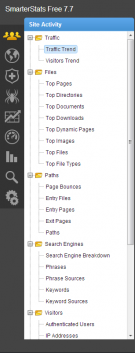
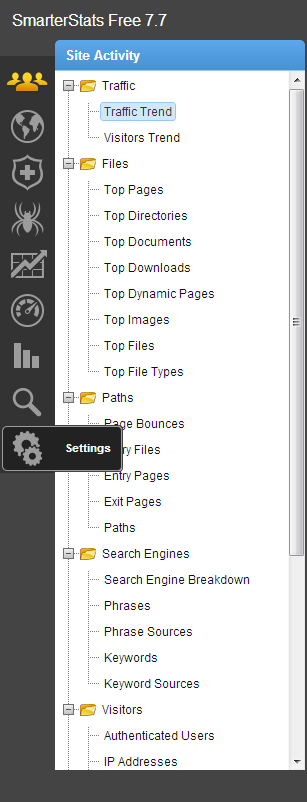
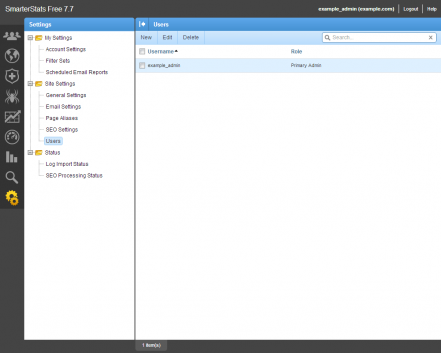
Click on Settings:
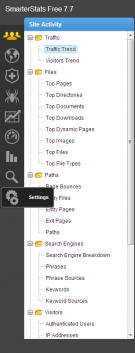
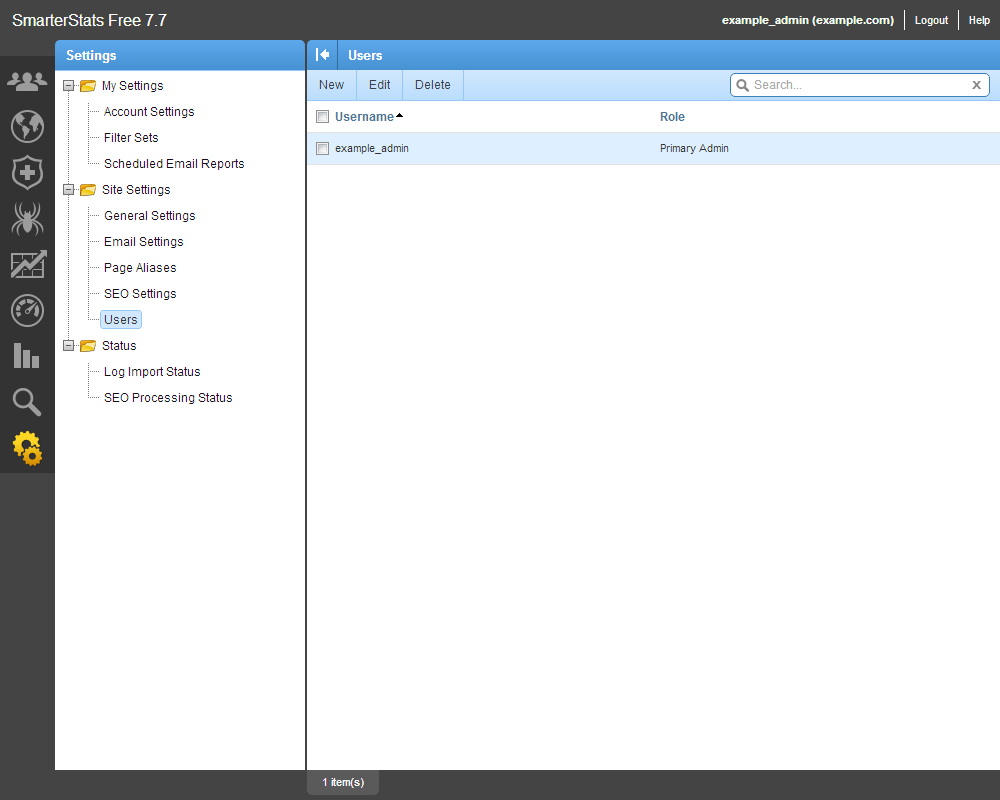
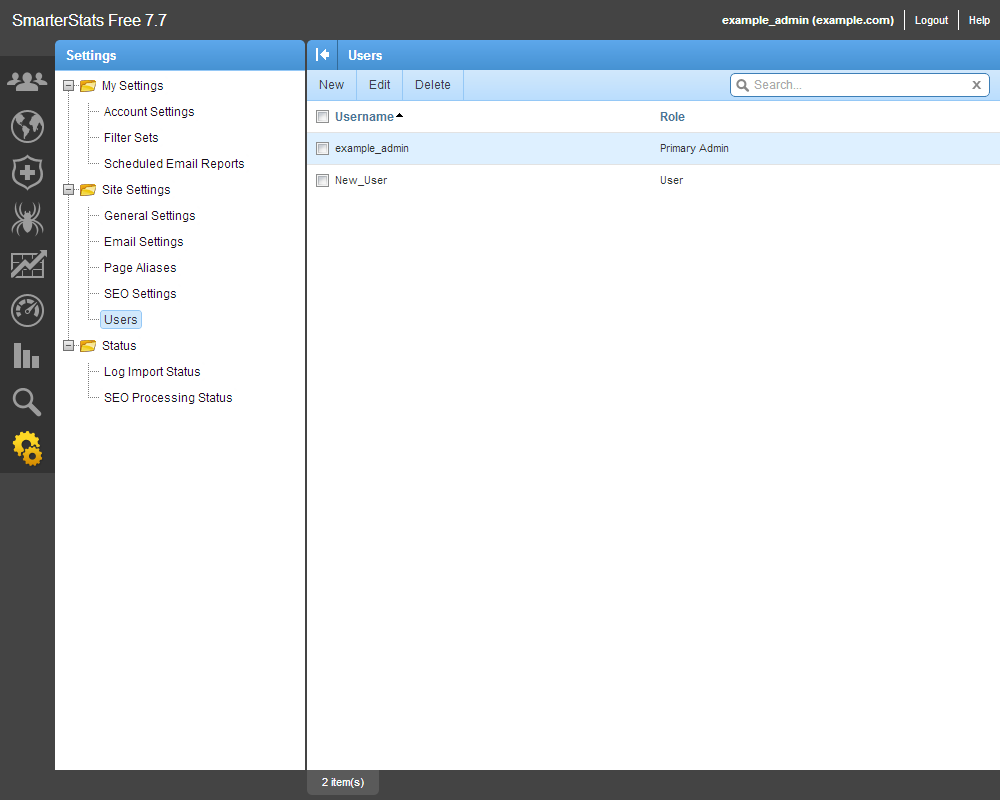
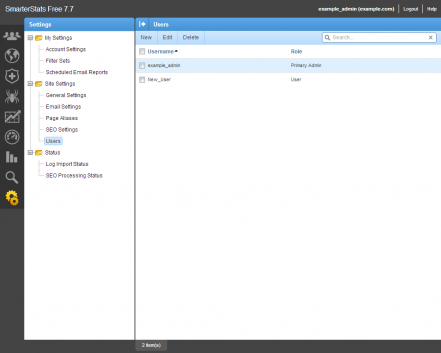
Click on Users, and then click New in the right pane:
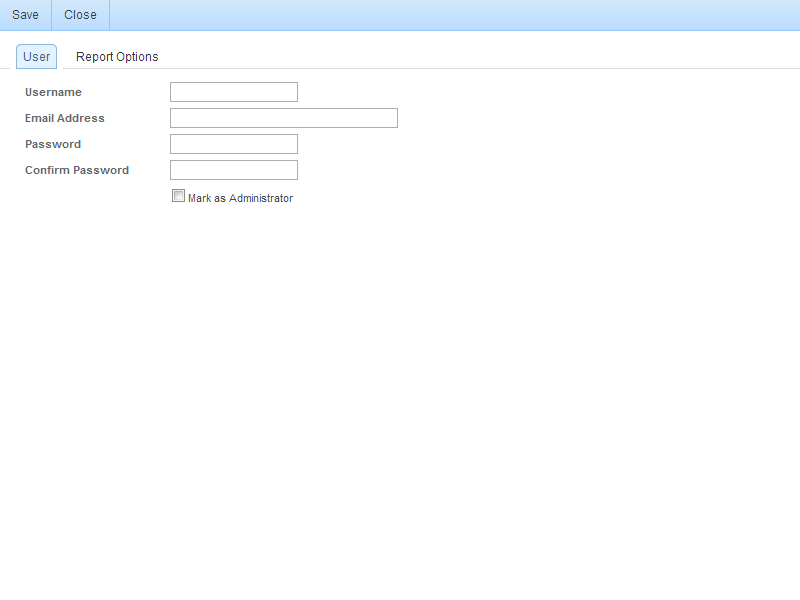
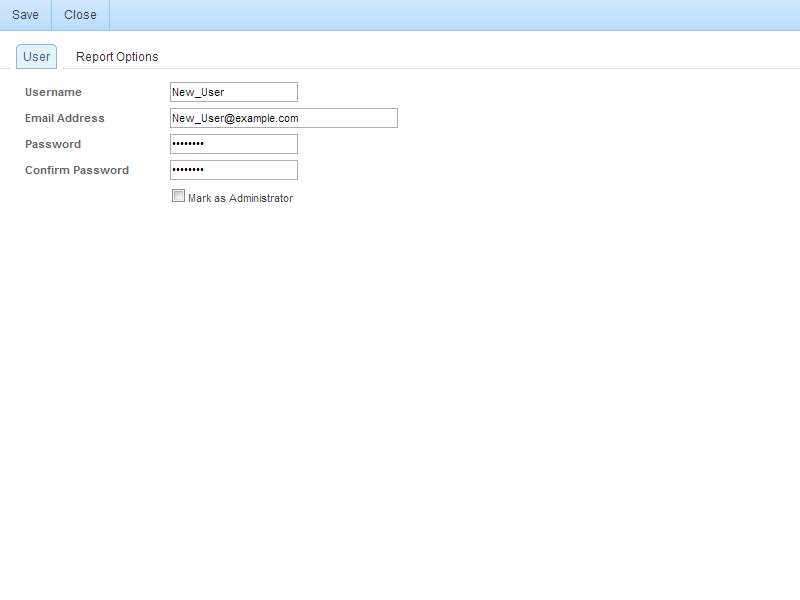
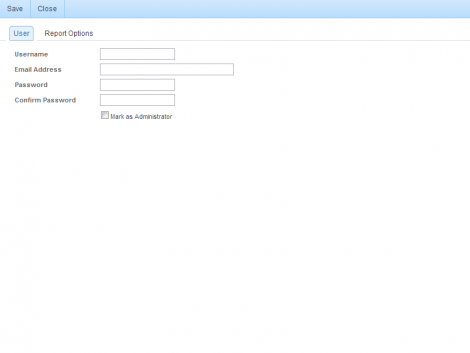
Enter in the details (Username, Email Address, Password, Confirm Password, Mark as Administrator) here:
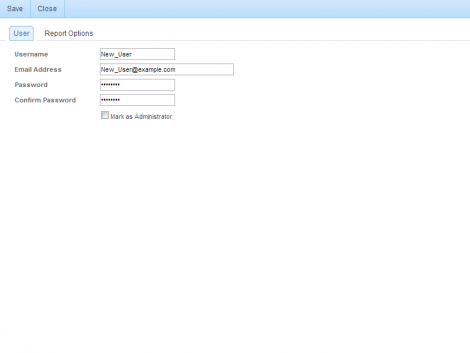
I have entered in some example details below in my setup.
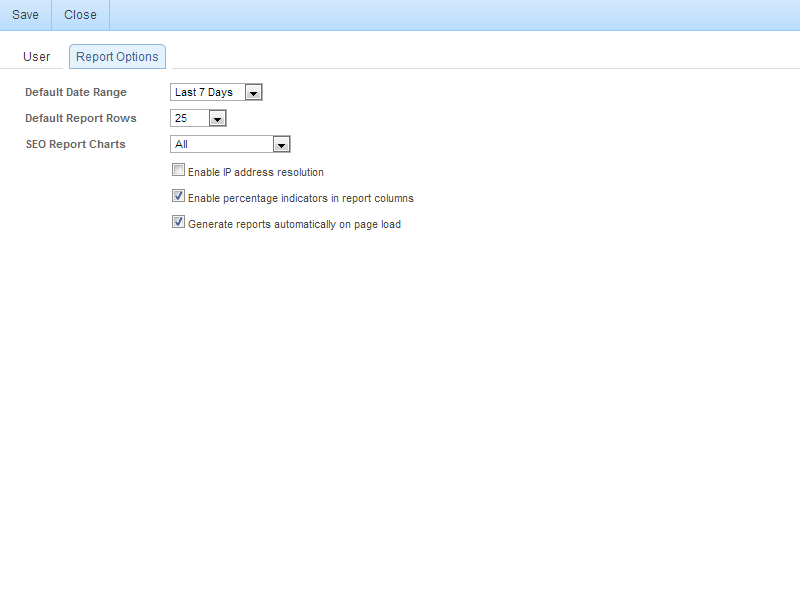
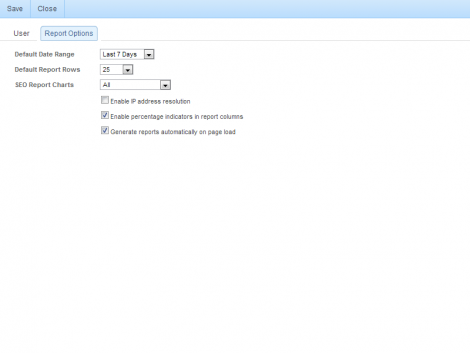
Click on the Report Options tab. The defaults to your installation may differ if they have been altered on the server level for new users. These are the defaults my vanilla (generic) install had. I recommend making sure that the Enable IP address resolution check box is unchecked. This can be rather resource intensive.
Once done entering the details and settings for the user click the Save button. You are then able to see the new user has been added.
Filed under: Code or Hosting | Comments Off on How to Add a Site Account (User) within SmarterStats
Posted by Rose Bush on November 8th, 2012
An Error Occurred
Page:
/Admin/Defaults/frmSiteDefaults.aspx
Message
The page or resource that you are accessing is unavailable or an error has occurred.
This error occurred at 11/8/2012 11:00:16 AM and has been logged.
In my Event viewer I saw this error:
Event code: 3005
Event message: An unhandled exception has occurred.
Event time: 11/8/2012 11:00:16 AM
Event time (UTC): 11/8/2012 4:00:16 PM
Event ID: 12ca4076f62c476eab139235f1d047bc
Event sequence: 26
Event occurrence: 1
Event detail code: 0
Application information:
Application domain: 8bad665c-1-129968638742097055
Trust level: Full
Application Virtual Path: /
Application Path: C:\Program Files (x86)\SmarterTools\SmarterStats\MRS\
Machine name: HaHaMachineName
Process information:
Process ID: 2572
Process name: SSWebSvr.exe
Account name: NT AUTHORITY\SYSTEM
Exception information:
Exception type: Exception
Exception message: There was a problem retrieving the information from the remote web server. Please contact support.
at SSWeb.HelperClasses.ServiceCommunication.GetSeoSearchEngines(Int32 serverId)
at SSWeb.UserControls.SiteSeoSearchEngineSettings.PopulateList(Int32 serverId)
at SSWeb.UserControls.SiteSeoSearchEngineSettings.LoadDefaultSettings(Int32 serverId, ConfigSettings settings)
at SSWeb.Admin.Defaults.frmSiteDefaults.Page_Load(Object sender, EventArgs e)
at System.Web.UI.Control.OnLoad(EventArgs e)
at SSWeb.HelperClasses.CustomPage.OnLoad(EventArgs e)
at System.Web.UI.Control.LoadRecursive()
at System.Web.UI.Page.ProcessRequestMain(Boolean includeStagesBeforeAsyncPoint, Boolean includeStagesAfterAsyncPoint)
Request information:
Request URL: http://localhost:9999/Admin/Defaults/frmSiteDefaults.aspx
Request path: /Admin/Defaults/frmSiteDefaults.aspx
User host address: 127.0.0.1
User:
Is authenticated: False
Authentication Type:
Thread account name: NT AUTHORITY\SYSTEM
Thread information:
Thread ID: 5
Thread account name: NT AUTHORITY\SYSTEM
Is impersonating: False
Stack trace: at SSWeb.HelperClasses.ServiceCommunication.GetSeoSearchEngines(Int32 serverId)
at SSWeb.UserControls.SiteSeoSearchEngineSettings.PopulateList(Int32 serverId)
at SSWeb.UserControls.SiteSeoSearchEngineSettings.LoadDefaultSettings(Int32 serverId, ConfigSettings settings)
at SSWeb.Admin.Defaults.frmSiteDefaults.Page_Load(Object sender, EventArgs e)
at System.Web.UI.Control.OnLoad(EventArgs e)
at SSWeb.HelperClasses.CustomPage.OnLoad(EventArgs e)
at System.Web.UI.Control.LoadRecursive()
at System.Web.UI.Page.ProcessRequestMain(Boolean includeStagesBeforeAsyncPoint, Boolean includeStagesAfterAsyncPoint)
Custom event details:
Soo, I tracked this down to what seems to be a bug with the latest installer as of version SmarterStats 7.6.4682. http://forums.smartertools.com/showthread.php/33031-An-error-occurred-while-loading-the-configuration-settings
As best as I can tell, SmarterTools describes this as:
FIXED: Configuring the Included Web Server to listen on All IP Addresses will now function correctly.
This is found in SmarterStats 7 Release Notes. The update was released on 2012-11-08.
Filed under: Code or Hosting | Comment (0)
Posted by Rose Bush on July 17th, 2008
In my day to day life, I work with SmarterStats and once in a while, files it uses become corrupt. I often get errors such as the ones below:
The file C:\SmarterLogs\WebLogs\123\currentsessions.logdat is corrupted on server localhost (1).
The file C:\SmarterLogs\WebLogs\123\UnprocessedSessions.dat is corrupted on server localhost (1).
I usually would then just replace the 2 or 3 files listed above with good ones
in the zip file I have below:
Good files
Filed under: Code or Hosting | Comment (0)