Edventures in Normalcy

My Personal Shangri-La

Posted by Rose Bush on December 23rd, 2015

I have once heard rumor that somewhere there is still a Chi Chi’s. I imagine it hidden inside a mountain where Shangri-La is. So on some random corner is a long lost land, is the best Mexican Restaurant chain ever, known only to the locals of Shangri-La.


Oh wait, I found them:

https://www.cityplug.be/en/Brussels/A42AV16Z_Restaurant_Chi-Chi-s-Anspach.html

https://en.wikipedia.org/wiki/Chi-Chi%27s

Solved iMessages Txt Msgs Coming From Email Address

Posted by Rose Bush on December 23rd, 2015

To correct the issue, on the iPhone, go to iMessages

To check if you have the problem yourself:

Go to settings > Messages > Send and Receive
Under “You can be reached by iMessage at”, if your phone number is not ticked, you have this problem.
To fix (this worked for me):

Go to Settings > Messages
Turn off iMessage
Go to Settings > Cellular
Turn off Cellular Data
Reboot phone
Turn Cellular Data and iMessage back on
Go to Settings > Messages > Send and Receive
Under “Start new conversations from”, tick your phone number
If you want to fail back to SMS messaging when iMessage is unavailable, make sure to enable Settings > Messages > Send as SMS. This was disabled by default on my fresh iOS7, and can cause text messages to be mysteriously delayed.

For more detail on the problem, see http://simonhackett.com/2013/11/06/ios7-imessage-mobile-number-linking/

A Troubleshooters Guide to Process Monitor (ProcMon)

Posted by Rose Bush on December 3rd, 2015

Process Monitor, by SysInternals under Microsoft, shows real-time file system, Registry and process/thread activity. To do this it registers itself with the Event Tracing for Windows to receive activity reports from both the file system and the windows registry.

It can be found here: Windows Sysinternals Process Monitor.


Display Overview

Some basics of what to expect to see, here is a resized window, giving all of the default information I want to go over:
The Process Monitor GUI.

Process Monitor Capture Icon Capture (Ctrl+E): Enables/Disables capturing activity.
Process Monitor Autoscroll Icon Autoscroll (Ctrl+E): Enables/Disables scrolling of display as activity is shown. I find it best to disable Autoscroll until enough filters are in place, ymmv.
Process Monitor Clear Icon Clear (Ctrl+X): Clears/flushes captured activity.
Process Monitor Filter Icon Filter (Ctrl+L): Shortcut to the filter screen.
Process Monitor Highlight Icon Highlight (Ctrl+H): Enable highlighting of particular captured activity.
Process Monitor Include Process From Window Icon Include Process From Window: You see a program you want to watch to see what it does, these cross-hairs will help you zero in on just it.


Process Monitor Registry Activity Icon Registry Activity: I use this secondarily and have sparse experience with it, I tend to disable it on startup.  Results include SUCCESS, NAME NOT FOUND, BUFFER OVERFLOW, REPARSE, NO MORE ENTRIES, ACCESS DENIED, and BUFFER TOO SMALL.

Process Monitor File System Activity Icon File System Activity: My bread and butter of this tool.  Almost always will be using this.  The seemingly more useful results include SUCCESS, ACCESS DENIED, NAME COLLISION, PATH NOT FOUND, END OF FILE, and BUFFER OVERFLOW, while the plethora of other results are NO MORE FILES, NAME NOT FOUND, FILE LOCKED WITH WRITERS, FILE LOCKED WITH ONLY READERS, NOT REPARSE POINT, PRIVILEGE NOT HELD, IS DIRECTORY, INVALID PARAMETER, NO SUCH FILE, RANGE NOT LOCKED, SHARING VIOLATION, OPLOCK NOT GRANTED, INVALID DEVICE REQUEST, and FAST IO DISALLOWED.  This may not be the full list, but what I could generate.

Process Monitor Network Activity Icon Network Activity: This would be my 3rd most used, and last as I don’t use the next two.  I like this to see if a connection was made out/in and to/from what host.

Process Monitor Process and Thread Activity Icon Process and Thread Activity

Process Monitor Profiling Events Icon Profiling Events

*A note on Fast IO
“Fast IO indicators in a trace have to do with how the windows file cache works. Process Monitor provides a default filter that removes most of the Fast IO events, by doing an exclude on events that have an Operation starting with the string “FASTIO_”. This leaves “FAST IO DISALLOWED” events captured and displayed. You often see a “FAST IO DISALLOWED” entry on a file followed by the normal path attempt to open the file which succeeds. Adding a filter to exclude Operations start with “FAST IO” eliminates these red herrings.


Starting up Process Monitor

When starting up the application, the output is overwhelming. Expect it, much like running Wireshark and showing all traffic on an interface, you are going to see more than you really need.

Filters
The default filter:

Process Monitor Filter GUI.

This strips out actions by the Process Monitor application itself. I use this as a base, and once the program starts showing results, exclude the imports I am not looking for. I rarely use the registry watch, and I typically stick to just the file monitor.

So for the default that loaded on the last version I downloaded, I would start the application, Process Monitor Capture Icon to stop the capture, disable Process Monitor Registry Activity IconProcess Monitor Network Activity Icon, and processandthreadactivity.  I am then left with just Process Monitor File System Activity Icon enabled.  Now start the capture again, Process Monitor Capture Icon.

For the slew of what is left, we have two options.

Include only the process by name or PID as a filter.

Pros: It is much cleaner and more direct if you know exactly what to look for. If I am trying to watch a single IIS Application pool, I can find its PID in the task manager, and add an Include for the matching PID.

Cons: This can exclude an item you had not anticipated, leaving a surprise to find out later.

Exclude Noise by Process name

Pros: Easier to start with when learning.  Can reveal conflicting applications.

Cons: Time cost, this can be a 30+ list in some cases.  Excluding that number of applications can take numerous runs of Process Monitor, starting and stopping captures to catch as much noise as one can.


Exclude Noise by Process name

I start excluding process’s by name for items I know I am not looking for.

Process Names’s I have been known to exclude:
In General:
System
Explorer.EXE
services.exe
scrnsave.scr
svchost.exe
mmc.exe
rundll32.exe

Desktop Environments:
trillian.exe
lync.exe
chrome.exe
firefox.exe
plugin-container.exe
FlashPlayerPlugin_11_5_502_135.exe
Nexus.exe
NOTEPAD.EXE
pn.exe
OUTLOOK.EXE
vmware-usbarbitrator.exe
FlashPlayerUpdateService.exe
GoogleUpdate.exe
putty.exe

Server Environments:
SSSvc.exe


Include only the process by name or PID as a filter.

TBD, As I run into further examples, I will flesh this out better.


Tips Tricks Notes

  • Don’t record/track when you don’t need to be. The application can lock up and/or run up resources. To be as clear as I can, I had to restart my machine after leaving it running overnight. I was gathering examples by running the software, and failed to follow my own directions. Windows literally told me to restart my applications.
  • When troubleshooting when layers/applications, I find it helpful to keep the browser on the local server as being listed in my output so that I can use it as a marker for when I am testing. It helps to narrow down what’s going on in the underlying moments when a request goes awry.
  • Even with good filters, there still is a lot of stuff to wade through in a trace. For example, when the application loads a dll, there may be several attempts to open the file (CreateFile) under different folders, until the file is found (keep in mind that you don’t necessarily want to go throwing a looked for file in the first place the application looks for. Saw this be very bad in a ColdFusion example).

DOS commands for IP

Posted by Rose Bush on December 1st, 2015

Below, you’ll find a list of the most common IP commands for Windows and DOS. These include ipconfig, trace route, netstat, arp, route, hostname, control netconnections, and other popular DOS and Windows IP commands.

MSSQL Backup all Non System Databases Scripted

Posted by Rose Bush on November 24th, 2015

Microsoft SQL Server backups, MSSQL Backup, process

  • Note: You may need to go to Tools > Options > Query Results > SQL Server > Results to Text in the Studio Manager and change the “Maximum number of characters displayed in each column to 1024” (default is 256). Also make sure you are outputting the results to text. If you do not do this prior, you run into the chance of either set of commands not outputting the full commands needed for the next step.
  • Also, you may need to open a New Query as the change ‘seems’ to only affect newly opened queries. The second pertinent setting, Open a new query window and ensure it has the focus, then go to Query > 249521. Here you can see the setting is located in 249521 > 249521. Change the Maximum number of characters displayed in each column the fields maximum of 8192.

The following command will generate a SQL script to back up all non system SQL databases. Be sure to replace the restore path. Make sure you set the results to text output.

Once the above query has been run, copy the output and run it as a new query on the source server (I migrate a lot, hence the terminology used).

Shameless Guitar Player

Posted by Rose Bush on November 23rd, 2015

httpv://www.youtube.com/watch?v=H_X7mMU6Gb0

Zubat post text

Posted by Rose Bush on November 11th, 2015

You know zubat? The one that always gets in your way in a cave? The reason they do that is because they are flying type, surrounded rock types such as geodudes, and onixes. Their chance of survival is slim. They run up to trainers hoping to be rescued from their hell, by being captured, but instead of being rescued, they are skorned, denied, and refused  If one is lucky, it will be the only one caught in the entire game to be the one to put in the pokedex, after that, the rest are damned to a life of torment for the rest of the game.  After the first one is caught  the only way for one to e captures is the 1/8092 chance of being shiny.  Since this is unlikely  they have to train harder than any other pokemon to survive against the rock types, and to do that, they have to murder their neighbors, their mothers, their brothers, their sisters, their fathers, their best friends, to learn supersonic, and have the small chance of survival.  Their live is full of misery, pain, and suffering, and instead of saving them, we run away from them.

IMDB says Edwin Bush is an (Adult) Actor

Posted by Rose Bush on November 11th, 2015

http://www.imdb.com/title/tt0153006/

PlayStation 2 Virtual Reality Headset

Posted by Rose Bush on November 9th, 2015

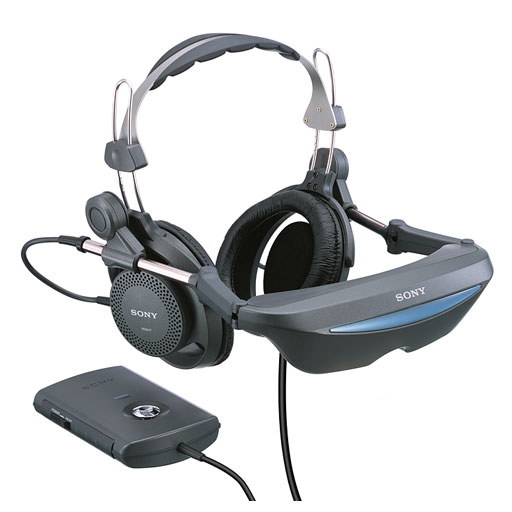
I found all too little information on the PlayStation 2 Virtual Reality Headset and was even told in 2004 or 2003 by a Sony representative that what I had seen and read about in magazines was a prototype, and that it was never actually for sale.   Within 10 minutes I found it for sale on the Japan Sony Website.   Here is all or most of the info I could track down:

pudj5a


  • Head Mount Display: Sony
  • Release Date 26/09/2002
  • Part No. PUD-J5A
  • Price (without tax) 59,800 yen
  • PlayStation points 1,794 pts.
  • Players 1 One

Head Mount Display
If Head Mount Display software, to move in all directions horizontally and vertically on the head can realize the virtual image of the world! Display is only for yourself and enjoy games and movies.   HT(DVD) HT software (game or DVD, etc.) can be used in conjunction with, and feels that enters into the picture space in all directions, the item propose a new way of creating a sound and visual entertainment world .

HT(Head-action Tracker ) HT (Head-action Tracker Head Mount Display).
You can experience the virtual image space in all directions horizontally and vertically by moving the head.
HT3D Note HT software and other 3D work and video will not work.

42(:2m) 42-worth of standard screen support (virtual visual range: approx 2m).
achieve a hard-edged sound and video.
Hold high style headphones ‘OBAHEDDOTAIPU’ achieve a comfortable wear.

More information
[Description] PUD-J5A Model for the PUD-J5A
Head Mount Display format
LCD 0.44/18×2 LCD 0.44-/ about 18 million pixels × 2
25 42( 2m) Horizontal angle of about 25 degrees virtual screen size equivalent to 42 inches (virtual visual distance of about 2m)
· AV IN() Input pin style style overhead type headphones attached form an open-air type headphones display AV IN terminal (stereo mini jack for setting special)
· S-VIDEO(S) S-VIDEO (S video input) output terminal
HT3() HT terminal 3 (out HEDDOAKUSHONTORAKKADETA)
· HT(“2″USB) HT power supply via the terminal ( “PlayStation 2″ in the body only when connected to the USB terminal)
· AC 1.5W AC power consumption of about 1.5W Power Adapters
· :340g Body Weight: 340g
· :80g Interface Box: About 80g
· :200×100×250mm()(××) Maximum body dimensions: approximately 200 × 100 × 250mm (when folding) (width × height × depth)
· :70×20×110mm(××) Interface Box: about 70 × 20 × 110mm (width × height × depth)
· AC×1 Accessories AC Power Adapter × 1
· AV(×3)×1 AV cable (special SUTEREOMINIPURAGU pin plug × 3) × 1
· ()×3 Plug Adapter (Jack-pin pin jack) × 3
· HT×1 HT cable × 1
· ×4() Cushion × 4 (for the interface box)
1: 1: Depending on how the software is also unable to visit all directions of the virtual space.
2:(Head-action Tracker): 2: HEDDOAKUSHONTORAKKA (Head-action Tracker) function: to reflect the image sensor to detect movement of the side of the head. 3: HT”2” This user is an all-round view over the virtual image space 3: HT function unit and “PlayStation 2” Please use only in connection with. “2” “PlayStation 2” is connected to other devices, the operation can not be guaranteed.

SONY’s PS2 launch and matching head-mounted liquid crystal display

[Industry News] [Read Trips
2002年09月11日16:19 At 16:19 on September 11, 2002
[文章简介] [Profile] Articles
SONY Corporation in order to cope with the recent Japanese PS2 sales, but also launched a head-mounted display glasses: PUD-J5A, expected to be available September 26, it is estimated cost about ¥ 59,800, equivalent to RMB … (recommended) (201 words)

SONY Corporation in order to cope with the recent Japanese PS2 sales, but also launched a head-mounted display glasses: PUD-J5A, expected to be available September 26, it is estimated cost about ¥ 59,800, equivalent to RMB 4,000 yuan.

PUD-J5A has two 0.44-inch 827 × 228. Resolution of about 18 million pixels of the LCD Head Mounted Display, sight distance 2m, dimension 200 × 250 × 100mm (width × depth × height), weight is about 340g.

JHMCS

JHMCS (queuing system integrated helmet attached).  HUD real image projected on the visor of the helmet system that some of view can be found here.
What happened and what it means, PDAF (Pontsuku Hall Air Force) is finally introduced!   SONY made a wish HMD, [PUD-J5A] Yafuoku to get!

Click photo is a little larger.
Hmd01_1


This HMD is about features they Heddoakushontorakka, things that you use omni-directional view of the corresponding game.   Immediately “Eimusutoraiku Enajieafosu!” Give it to.

Actual JHMCS will also introduce the F-35 flight. Front cockpit.

Turn left and head

Arrow to lock the enemy planes at an angle like this.

Fox 2!

Literally, we Sidewinder rushing over sideways.

While desperately trying to avoid releasing flares Tu-160.

One splash!

AIM-9X can now finally proved the ability to bore off site.   And F-35 and very easy to overlook when around the vertical landing.  “Eimusutoraiku Enajieafosu!” Some time to play again. …… “Earodanshingu 4” Naa it was very, very easy for photography … but if someone would correspond

This HMD, a promise is 2m away and the screen 42 is equivalent to the type, quality minutes, so there is a limit to the pixel in the LCD will be less rough course.  And difficult to read small letters. Than expected but quality was good.    It seems to work Heddoakushontorakka, Ito Tetsu so this is no longer move his head like crazy, sometimes reset button (with the headphones are left), there is a pressing need.
The other five were released but only Pureisuteshondottokomu years ago, was quite expensive (¥ 59,800) take the next step should be the ones who want to buy it abuses.   In fact, almost出Nakatta corresponding games.  Today is quite difficult to obtain.  Sometimes that comes out to check the Yafuoku.

SCP for practical uses

Posted by Rose Bush on November 9th, 2015

A basic example:

SCP
The scp command allows you to copy files over ssh connections. This is pretty useful if you want to transport files between computers, for example to backup something. The scp command uses the ssh command and they are very much alike. However, there are some important differences.

The scp command can be used in three* ways: to copy from a (remote) server to your computer, to copy from your computer to a (remote) server, and to copy from a (remote) server to another (remote) server. In the third case, the data is transferred directly between the servers; your own computer will only tell the servers what to do. These options are very useful for a lot of things that require files to be transferred, so let’s have a look at the syntax of this command:

Looks quite familiar, right? But there are differences. The command above will transfer the file “examplefile” to the directory “/home/yourusername/” at the server “yourserver”, trying to get ssh acces with the username “yourusername”. That’s quite a lot information, but scp really needs it all. Well, almost all of it. You could leave out the “yourusername@” in front of “yourserver”, but only if you want to login on the server with your current username on your own computer. Let’s have a closer look at the end of the command. There’s a colon over there, with a directory after it. Just like Linux’s normal cp command, scp will need to know both the source file(s) and the target directory (or file). For remote hosts, the file(s)/directory are given to the scp command is this way.

You can also copy a file (or multiple files) from the (remote) server to your own computer. Let’s have a look at an example of that:

Note: The dot at the end means the current local directory. This is a handy trick that can be used about everywhere in Linux. Besides a single dot, you can also type a double dot ( .. ), which is the parent directory of the current directory.

This will copy the file “/home/yourusername/examplefile” to the current directory on your own computer, provided that the username and password are correct and that the file actually exists.

You probably already guessed that the following command copies a file from a (remote) server to another (remote) server:

Please note that, to make the above command work, the servers must be able to reach each other, as the data will be transferred directly between them. If the servers somehow can’t reach each other (for example, if port 22 is not open on one of the sides) you won’t be able to copy anything. In that case, copy the files to your own computer first, then to the other host. Or make the servers able to reach each other (for example by opening the port).

Well, those are the main uses of scp. We’ll now go a bit more in-depth about the differences between ssh and scp.

*: Actually you can also use it just like the normal cp command, withhout any ssh connections in it, but that’s quite useless. It requires you to type an extra ‘s’ =).

Specifying a port with scp
The scp command acts a little different when it comes to ports. You’d expect that specifying a port should be done this way:

However, that will not work. You will get an error message like this one:

cp: cannot stat `yourport’: No such file or directory
This is caused by the different architecture of scp. It aims to resemble cp, and cp also features the -p option. However, in cp terms it means ‘preserve’, and it causes the cp command to preserve things like ownership, permissions and creation dates. The scp command can also preserve things like that, and the -p option enables this feature. The port specification should be done with the -P option. Therefore, the following command will work:

Also note that the -P option must be in front of the (remote) server. The ssh command will still work if you put -p yourport behind the host syntax, but scp won’t. Why? Because scp also supports copying between two servers and therefore needs to know which server the -P option applies to.

Another difference between scp and ssh
Unlike ssh, scp cannot be used to run a command on a (remote) server, as it already uses that feature of ssh to start the scp server on the host. The scp command does have an option that accepts a program (the -S option), but this program will then be used instead of ssh to establish the encrypted connection, and it will not be executed on the remote host.

Tips & Tricks with ssh and scp
Quite a handy thing about scp is that it supports asterisks. You can copy all files in a remote directory in a way like this:

And you can also just copy a whole directory by specifying the -r (recursive) option:


Both of these also work when copying to a (remote) server or copying between a (remote) server and another (remote) server.

The ssh command can come in handy if you don’t know the exact location of the file you want to copy with scp. First, ssh to the (remote) server:
ssh yourusername@yourserver
Then browse to the right directory with cd. This is essential Linux terminal knowledge, so I won’t explain it here. When you’re in the right directory, you can get the full path with this command:

Note: pwd is an abbreviation of Print Working Directory, which is a useful way to remember the command.

You can then copy this output, leave the ssh shell by pressing Ctrl + D, and then paste the full directory path in your scp command. This saves a lot of remembering and typing!

You can also limit the bandwidth scp may use when copying. This is very useful if you’re wanting to copy a huge amount of data without suffering from slow internet for a long time. Limiting bandwidth is done this way:

The bandwidth is specified in Kbit/sec. What does this mean? Eight bits is one byte. If you want to copy no faster than 10 Kbyte/sec, set the limit to 80. If you want to copy no faster than 80 Kbyte/sec, set the limit to 640. Get it? You should set the limit to eight times the maximum Kbyte/sec you want it to be. I’d recommend to set the -l option with all scp’ing you do on a connection that other people need to use, too. A big amount of copying can virtually block a whole 10 Mbit network if you’re using hubs.

Copyright © 2026 Edventures in Normalcy. All rights reserved.