Edventures in Normalcy

Pictures to setup Google Checkout (Google Side)

Posted by Rose Bush on February 23rd, 2009

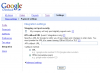
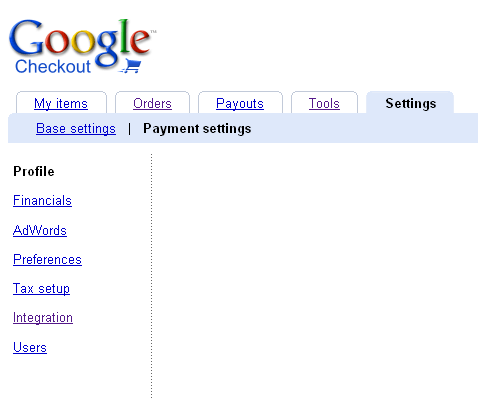
To edit your settings log into your Google Checkout Account, Click on Settings, and then Click on Integration.  You will find the correct settings to set these to within your Miva Merchant admin section, at the screen where you edit the Payment settings for your Google Checkout module.

Pictures to setup PayPal Website Payment Standard (PayPal Side)

Posted by Rose Bush on February 23rd, 2009

To edit your settings log into your PayPal Account, Click on Profile.  Both sections you want to edit are here.  The First one is Instant Payment Notification Preferences (6 down on the right column in my image) the second is the Website Payment Preferences (10 down on the right column in my image).  You will find the correct settings to set these to within your Miva Merchant admin section, at the screen where you edit the Payment settings for your PayPal Website Payments Standard module.

Microsoft no longer supports their own Proprietary Protocol

Posted by Rose Bush on February 19th, 2009

See, see:
http://support.microsoft.com/kb/934371

Showing Hidden Files in FTP Clients

Posted by Rose Bush on January 2nd, 2009

In Dreamweaver
Pre CS:
Step 1: Go to the ‘Files’ section in the sidebar.
Step 2: Click the ‘Options’ icon
Step 3: Select ‘View’
Step 4: Click on ‘Show Hidden Files’

CS Versions:
Step 1: If you don’t have one already, create a new Site, even a temporary one.
Step 2: Go back to the ‘File’ panelss
Step 3: Click on the small icon at the very top and the very right of the Files pane
Step 4: In the context menu click on ‘View’
Step 5: Click on ‘Show hidden files’

In Filemanager
Step 1: Go to www.yoursite.com/fileman/fileman.cgi?
Step 2: Select the ‘web’ folder
Step 3: Select Preferences from the tools menu.
Step 4: Tick the ‘File Display’ -‘ Do you want to show hidden files?’ checkbox (NB: The directory will refresh showing the hidden files.)
Step 5: You can then delete / copy / move the file using the Commands menu.

In CuteFTP
Step 1: Go to Sitemanager.
Step 2: Choose the connection and click edit.
Step 3: Make sure filters is checked.
Step 4: Press the filter button towards the bottom.
Step 5: Check [Enable remote filters (Server applied filter)]
Step 6: In the box below add -al
Step 7: Hit apply, now log in with that connection.

In WSFTP
Version 8.03 and earlier:

On the remote site, under the MkDir button, locate the blank box. In the blank box type -la. Then, hit the Refresh button. This will list all files in the directory.

In Site Options for your site you can set Edit | Startup | Remote File Mask to
-la to always view all hidden files at the target site, regardless of directory.

Version 9.0 and later:

In version 9.0 and later, the File Mask is not enabled on the Command Bar by default. (The Command Bar is a toolbar at the top of each file list that provides quick access to file or folder functions within the view.) You can Add the File Mask to the Command Bar if you select the down arrow located to the far right edge of the toolbar to display a menu that allows Add or Remove Buttons.

In Fetch
Step 1: Open the Preferences.
Step 2: Click on the ‘Misc’ tab
Step 3: Click on the ‘Obscure Options’ popup menu.
Step 4: Check the ‘Send LIST -al to UNIX servers’

In BBEdit
Click the checkbox that says ‘Show Files Starting with “.”‘

In Transmit
Step 1: Open the Preferences.
Step 2: Click on ‘Files’ in the Toolbar.
Step 3: Check the box that says ‘Show all Hidden Files.”

In FTP Voyager
Step 1: Select a profile in the FTP Site Profile Manager.
Step 2: Click on the ‘Advanced’ button.
Step 3: Select the category ‘Connection’.
Step 4: Enter “-la” in the Extra LIST Parameter.

In SecureFX
Step 1: Right click on the connection before logging on.
Step 2: Select “properties”.
Step 3: Select Category > Options > FTP.
Step 4: On this screen you shall see a box that says “Directory Listing Options”. Select the option “All entries”, then log in.

In LeechFTP
Step 1: Run Leech FTP
Step 2: Select “File”, “Options”
Step 3: Select “Transfers” tab
Step 4: In the “List Command” box enter “LIST-a” (no quotes)
Step 5: Click “Accept”
Step 6: Log in and view directory, all is well.

In AceFTP
Step 1: Go to the site profiles manager (Ctrl+W)
Step 2: Go to the properties of the site (left click -> properties, or select and Alt+Enter)
Step 3: Click on “Folders” in this list on the left
Step 4:Under “Folder Listing Command:”, select the “Use custom value:” radio button and type “LIST -al” into the dropdown menu immediately below.
Step 5: Click “OK”

In FileZilla
Step 1: Edit -> Settings -> Remote file list
Step 2: Be sure that “Always show hidden files” is checked.
OR
Step 1: Server -> Force showing hidden files

In fireFTP
Step 1: Run fireFTP
Step 2: Select Preferences (Alt+R)
Step 3: Select the “General” tab
Step 4: Select “Show Hidden FIles”
Step 5: Click “OK”

Total Commander 7
Step 1: Go to Configuration
Step 2: Go to Options
Step 3: Go to Display
Step 4: Check show hidden folders
USPS character encoding issue for shipping in Miva Merchant

Posted by Rose Bush on November 16th, 2008

Some times I see strange characters when viewing the Shipping Options in a Miva Merchant store.  This is because the characters are dependent on a character set.  The way to correct this is to run the following command:

It is semi safe to copy and paste the above command, ensure you change the s02 as needed. On a side note, this runs best from phpMyAdmin as pasting this in putty can cause problems with it matching the bad characters.

I got this error:
Runtime error in features/sta/sta_db.mvc @ [00000007:00000028]: Line 151: MvQUERY: mysql_stmt_prepare: Table ‘user.s01_Stats’ doesn’t exist

Miva Merchant has encountered a fatal error and is unable to continue. The following information may assist you in determining the cause of the error:
Error Code: MER-STA-DTB-00008
Description: mysql_stmt_prepare: Table ‘user.s01_Stats’ doesn’t exist

The problem was I use a shared SSL from my host and I rant he Add Store when logged in insecurely.  I had to have the store dropped from the Stored table and set the Stores value in the DomainKeys table down by one.  So if it was set to 1, I had to set it to 0.  I was then able to add the store securely without error.

MER-STP-00019 – Unable to validate license number

Posted by Rose Bush on October 29th, 2008

I ran across this error on a new server when configuring Miva Merchant.  Upload the diag5.mvc from Miva Merchant and go to the MIVA License Manager Call. Here you should see errors to assist in troubleshooting the error.

PhpMyAdmin 2002 error in CPanel

Posted by Rose Bush on August 8th, 2008

Linux VPS (CPanel) What to do if you are not able to access PhpMyAdmin from a individual account.
Within CPanel, you have the ability to access a MySql database using PhpMyAdmin. However you may notice that if you attempt to connect to PhpMyAdmin using a login other than root (Using port 2083) you will get the following error;
PhpMyAdmin Error:

>#2002 – The server is not responding (or the local MySQL server’s socket is not correctly configured)

To correct this you will need to login as root and edit /usr/local/cpanel/base/3rdparty/phpMyAdmin/config.inc.php. To do this, do the following;

(You can also use Pico or Nano if it is installed.

find

change to

next line

change to

You may also will want to change “localhost” to “127.0.0.1″

That’s it. Now restart MySql (this may or may not be necessary) and you will be able to login to PhpMyAdmin.

SmarterStats v3

Posted by Rose Bush on July 17th, 2008

In my day to day life, I work with SmarterStats and once in a while, files it uses become corrupt.  I often get errors such as the ones below:

The file C:\SmarterLogs\WebLogs\123\currentsessions.logdat is corrupted on server localhost (1).
The file C:\SmarterLogs\WebLogs\123\UnprocessedSessions.dat is corrupted on server localhost (1).

I usually would then just replace the 2 or 3 files listed above with good ones
in the zip file I have below:
Good files

Copyright © 2026 Edventures in Normalcy. All rights reserved.