Edventures in Normalcy

The error that the other server returned was: 550 550 Mailbox unavailable or access denied – <example@comcast.com> (state 13).

I was sending an old contact an email, and got this in my bounceback, and NO, the email address in my example is not the email address I was sending to.  The fix was simple enough, I had to change the address to the .net TLD and was then able to resend the message.

Restore of database ‘NEWDB’ failed. (Microsoft.SqlServer.Management.RelationalEngineTasks) ADDITIONAL INFORMATION: System.Data.SqlClient.SqlError: BACKUP LOG cannot be performed because there is no current database backup. (Microsoft.SqlServer.SmoExtended) For help, click: http://go.microsoft.com/fwlink?ProdName=Microsoft+SQL+Server&ProdVer=11.0.2100.60+((SQL11_RTM).120210-1917+)&LinkId=20476

Lets take a look in the SQL Server error log, to do so:
In Object Explorer, expand a server, expand Management, and then expand SQL Server Logs.
Right-click a log and click View SQL Server Log.

The errors (combined below for readability) generated for this is not much more helpful.

Date 11/20/2012 11:56:40 AM
Log SQL Server (Current – 11/20/2012 12:03:00 AM)

Source Backup

Message
Error: 3041, Severity: 16, State: 1.

BACKUP failed to complete the command BACKUP LOG NEWDB. Check the backup application log for detailed messages.


As it turns out, I also had the warning of  ‘A tail-log backup of the source database will be taken.  View this setting on the Options page.’  This was also a just created database.  When I unchecked the box for ‘Take tail-log backup before restore’ under the ‘Tail-Log backup’ section I was then able to run my restore and get past this error.  This is the first time I have run into this error, I am unsure if this is a change with SQL 2012.

Migrating SQL Server Users

Posted by Rose Bush on November 20th, 2012


Are you migrating SQL users?  I recommend migrating their SID’s as well.  There is this article on MSDN.  The sum of it is to run this:


This awesome stored procedure is created, you can then run it as so:


The output is what would be needed to create the users, and their associated SID’s on a separate instance of SQL server. See http://support.microsoft.com/kb/918992

You can also pull the details from a single database, for example:

You can then use this output to manually recreate the logins:

I personally see this as useful when I do not have access to the source installation to run the first set of scripts, and am only supplied a backup.


php Warning: Cannot modify header information

Posted by Rose Bush on November 20th, 2012

I received the error of “php Warning: Cannot modify header information”, and found the fix is to update my php.ini to include this:

I ‘could’ also set the variable in an include page, if my site was running PHP as a CGI.

Forcing IP Resolution of a Domain for Local Testing Purposes

Posted by Rose Bush on November 15th, 2012

If you need to test a server using a domain name, but can not repoint the domain to test, you can force your local machine to resolve the domain name to the IP address of your choice.  You do this using the hosts file, on Windows, or the resolv.conf file on a linux OS.  This is going to be OS specific, find the directions below for your OS.


Windows XP:

COMING SOON!

Windows Vista/7/8:

Start -> All Programs -> Accessories -> Notepad

Right click and run as administrator.

File -> Open

%SystemRoot%\system32\drivers\etc\hosts

You may need to type in the name hosts again.

Here you can edit.  The format is rather clear.  For each line you have an IP followed by white space, followed by each FQDN you want to resolve to this IP.  This list of FQDN’s need to be white space delimited.  Save the file.  Flush your DNS cache:

If you are testing with a web browser, you may need to take additional steps to circumvent DNS caching within the program.

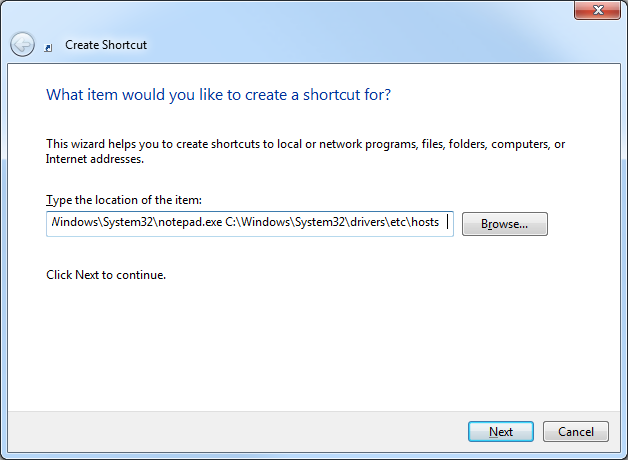
If you are going to be editing this file often, you can also make a shortcut as so:

Create a shortcut in a folder of your choice.
For the “Type the location of the item” field, put in the following:
C:\Windows\System32\notepad.exe C:\Windows\System32\drivers\etc\hosts

creating_hosts_shortcut_01

Click Next. On this screen I just title the shortcut ‘hosts’.

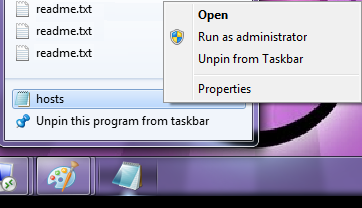
Drag this shortcut to your task bar.

Right click on the notepad icon that shows, then right click on the notepad icon in the popup bubble. From there go to Properties.

creating_hosts_shortcut_02


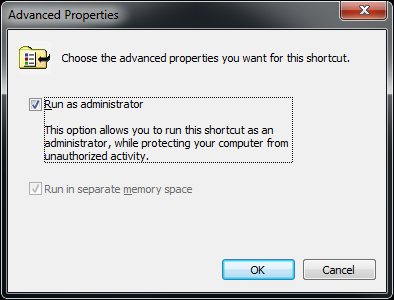
On the Shortcut tab, go to Advanced. Check the box for Run as Administrator.

creating_hosts_shortcut_03

Click OK, Click OK. Now when you click on that link it will prompt you to run Notepad as Administrator and allow you to edit and save the hosts file very easily.

Also, COMING SOON!

Mac OS X 10.0 – 10.1.5:

COMING SOON!

Mac OS X 10.2 and newer:

COMING SOON!

Migrating MySQL Users Between Servers

Posted by Rose Bush on November 13th, 2012

I want a ONE liner to migrating MySQL users between servers. We know that migrating databases is easy enough using mysqldump, but migrating users from one MySQL instance or server to separate one can be annoying. Based on well known export commands, here is a neat little piped set of commands that you can run on the source DB server. The command will generate all the GRANT statements that you can simply run on the destination DB server.

If you are logged in as root user and do NOT need to supply user and password:

Hey, lets go two better, lets run the output, and add semicolons at the end of the lines to make the output appropriate to run on the destination server.

The beauty of this is that you need not know the passwords for any of the mysql user accounts and are then given one block of output, instead of the commands to run to get the grants.

*Migrating all databases except mysql and information_schema:

Originaly found on http://jasonbos.co/migrating-mysql-users-from-one-server-to-anot

Setting the To, CC, BCC, Subject & Body Fields Using Mailto: Links

Posted by Rose Bush on November 13th, 2012

I recently came across a scenario where I needed to have a mailto: link include additional details, and particularly an email address in the cc field.  You can configure an HTML mailto: link to include a number of fields:

  • Basic Mailto: Link
  • To:
  • CC:
  • BCC:
  • Subject:
  • Body:


The Mailto: Link
The Mailto: Link is a variation of the standard HTML Hyperlink. It invokes the browser to send an email when the ‘href’ attributes value starts with ‘mailto:’ as below.


To: – Setting the email recipient
The To: field is the only required field of a Mailto: link. This is the email address that the generated email will be sent to.

If you wish to add multiple recipients to the To: field (or the CC: and BCC: fields as shown below) separate the addresses with commas (e.g. admin@example.com,end_user@example.com).


CC: – ‘Carbon Copy’ for adding additional recipients
Note: When adding items to your mailto: link make sure to add a question mark (?) after the ‘To:’ field.


BCC: – ‘Blind Carbon Copy’ for adding hidden recipients
You can also add recipients to the email who will be hidden from the To: and CC: recipients within the email message, by using the BCC: field. If you have already added a CC: (or any other element) to your mailto: link, you should include an ampersand (&) before each additional item.


Subject: – Adding subjects to your emails
The Subject: field in your mailto: link  will allow you to set the emails subject.

Note: A mailto: link can not contain spaces.  When adding a Subject: or Body: field use ‘%20’ instead.


Body: – Making an email template
The final variable of a mailto: link is the Body: attribute.  This allows you to set a specific message within the body of the message. You can enter a line such as, “I would like to unsubscribe from this poop.″ with the following:


Summary
A fully formed mailto: link can be very useful! Use it, and be more awesome!!

Setting Up SmarterStats 7

Posted by Rose Bush on November 12th, 2012

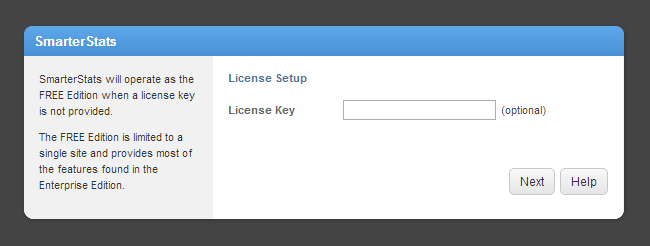
SmarterStats, and you.  I ♥ SmarterStats, from a usability standpoint as well as from an administrator/troubleshooter standpoint.  The latest iteration is 7.6.4682, as of this writing. Release notes are found here.  After the installation, including the requirement for .NET 4, it will auto open the Getting Started page, likely at http://localhost:9999/GettingStarted.htm.  It seems that in this version, and possibly prior versions, there is a Getting Started video tour.  I am going to chose to Begin Setup.  The screen we are welcomed with is the License Setup Screen.  If you have a license, go ahead and put it in now.  If not, that is fine.  A license can be added into the system after the setup is complete.

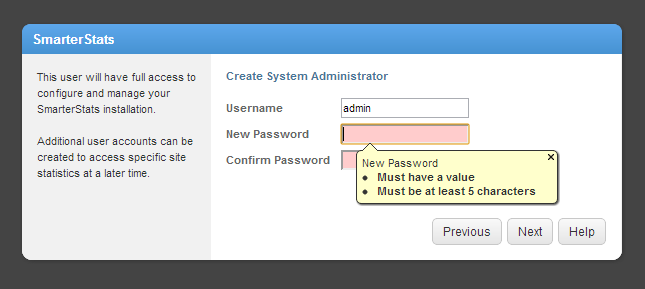
In my example, I am deciding to run SmarterStats as the free edition.  After clicking Next, the Create System Administrator screen is shown:

As you can see the password does have some requirements.

  • Cannot be left empty
  • Must be at least 5 characters
  • The Confirm Password field must match the New Password field.

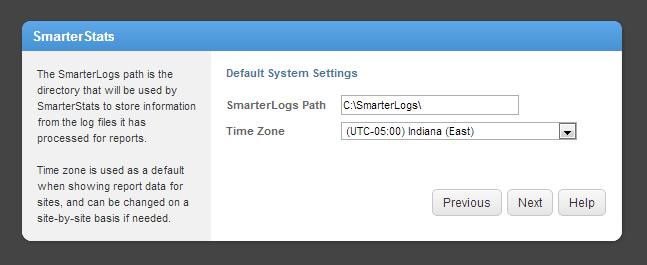
This does allow one to use the password of ‘admin’ sans quotes.  I recommend against this in a production environment.  Making our way to the Next screen, we have the Default System Settings:

The SmarterLogs Path shown is the default, and quite honestly my preference.  This path is important when troubleshooting issues to a specific site.  The Time Zone setting seems to load based on the local time, and can be changed later on.  I believe we also get the option to set this different per site.  Our final screen is the Default SMTP Settings screen.  Here you can configure how SmarterStats sends email messages.  I usually think of this in terms of reports,standard and custom.  This can be configured after the setup is complete as well.  Once ready click Finish.  This article will be updated with links to specific tasks.

Xp_cmdshell and Errors in SQL server.

Posted by Rose Bush on November 12th, 2012

This article is essentially a combination of two articles I had read online. One made it easy to find the errors and the other made it easy to find the fix, but I wanted one place where I could find BOTH. What do you need in place in order to use xp_cmdshell? I warn you, there are obvious security risks and implications for going this route. (I’m not recommending usage of xp_cmdshell in general, and frankly have no clue how to use it, but you don’t need to know how to use it to enable it) We first need to think about what happens here, from an architectural level:

A user who has logged in to SQL Server executes xp_cmdshell. For this, SQL Server need to spawn a process in Windows. A process in Windows need to execute in a Windows user account. How does SQL Server know what Windows account is to be used? If the SQL Server login who is executing xp_cmdshell is sysadmin, then SQL Server will use the service account (it will not “pretend to be somebody else” or emulate another user). However, if the login is not sysadmin, then one would need to configure what Windows account to be used (using sp_xp_cmdshell_proxy_account). Note that this configuration is the same for all non-sysadmins. But there’s a little bit more to it than a single setting. Below is an outline of what needs to be done. Step 2 and 3 are only needed if the one who is to execute xp_cmdshell isn’t sysadmin. Note that the steps don’t have to be performed in the order listed below.

We need to allow usage of xp_cmdshell in general (on 2005 or 2008). Use “Surface Area Configuration” or sp_configure to perform this. We need to have a user in the master database which has execute permission on xp_cmdshell. If you are uncertain about the difference between logins and users, you should read up about it in BOL. We need to say what Windows account should be used when a non-sysadmin user is executing xp_cmdshell.

For users that are not members of the sysadmin role on the SQL Server instance, as mentioned above, you need to do the following actions to grant access to the xp_cmdshell extended stored procedure.

Below are the Errors thrown and the TSQL script correcting said error, that enables this:

(1) Enable the xp_cmdshell procedure

*Msg 15281, Level 16, State 1, Procedure xp_cmdshell, Line 1 SQL Server blocked access to procedure ‘sys.xp_cmdshell’ of component ‘xp_cmdshell’ because this component is turned off as part of the security configuration for this server. A system administrator can enable the use of ‘xp_cmdshell’ by using sp_configure. For more information about enabling ‘xp_cmdshell’, see “Surface Area Configuration” in SQL Server Books Online.*
Fix:

(2) Create a login for the non-sysadmin user that has public access to the master database

*Msg 229, Level 14, State 5, Procedure xp_cmdshell, Line 1 The EXECUTE permission was denied on the object ‘xp_cmdshell’, database ‘mssqlsystemresource’, schema ‘sys’.*
Fix:

(3) Grant EXEC permission on the xp_cmdshell stored procedure

*Msg 229, Level 14, State 5, Procedure xp_cmdshell, Line 1 The EXECUTE permission was denied on the object ‘xp_cmdshell’, database ‘mssqlsystemresource’, schema ‘sys’.*
Fix:

(4) Create a proxy account that xp_cmdshell will be run under using sp_xp_cmdshell_proxy_account

*Msg 15153, Level 16, State 1, Procedure xp_cmdshell, Line 1 The xp_cmdshell proxy account information cannot be retrieved or is invalid. Verify that the ‘##xp_cmdshell_proxy_account##’ credential exists and contains valid information.*
Fix:

Leverage Browser Caching in .htaccess File

Posted by Rose Bush on November 12th, 2012

Leverage browser caching

  • The following cacheable resources have a short freshness lifetime. Specify an expiration at least one week in the future for the following resources:

With a note of: (expiration not specified)

To deal with this, I added the following to my .htaccess file:

This is a modified version of what I saw recommended.  The original as I found it was:

However I had a plugin that added the ‘Header unset ETag’ and ‘FileETag None’ lines.  I found the code here, and you can read up on mod_expires here.  It is good to note that although the message recommends at least 7 days, Google has a  best practices guide found here that recommends 30 days as a minimum.

Copyright © 2026 Edventures in Normalcy. All rights reserved.