Edventures in Normalcy

Easily test connectivity to MSSQL Server

Posted by Rose Bush on April 9th, 2013

I have run into a number of cases where I want to test a connection to a SQL (MSSQL) Server without having to resort to code. To do so is rather straight forward:

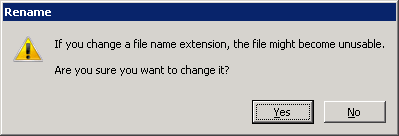
Create a new file, a simple txt file is fine, and rename the document to “TestDBConnection.udl” sans quotes and spaces.

testConnect_01

Be sure to change its file extension to .udl as many windows systems will not show you the extension. If you are in Explorer in Windows 7 I can tell you the commands to get to the setting are Alt, T, O, CTRL + Tab. Here you can see the ‘Hide extensions for known file types’.
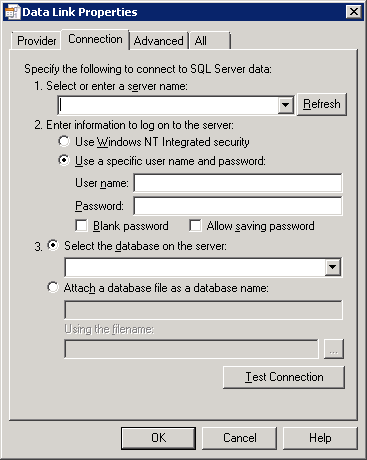
Open the file:

testMssqlConnection_01

Under Connection, enter the SQL server hostname or IP

If testing a SQL alias:
Enter information to log on to the server”
*Choose Windows Authenticated security
Click the Refresh button.
If a successful connection was made, a list of databases will be accessible under section 3.

Otherwise, test as you would guess, it is fairly clear from here.

Obtaining Usage Information on *nix Systems

Posted by Rose Bush on April 5th, 2013

When obtaining usage information, there are primarily 3 details you want to look at (for my needs, yours may vary) being CPU, RAM, Hard Disk. On many systems you can use the below commands:

On newer machines ( I think RHEL 6 and newer) you can use nproc in place of the first command:

There is also this very straight forward method below:

Okay, ran into this issue and had errors in numerous places, errors consisted of 2 Information items in the event viewer:
Faulting application name: cygrunsrv.exe, version: 0.0.0.0, time stamp: 0x40826252
Faulting module name: ntdll.dll, version: 6.1.7601.17725, time stamp: 0x4ec49b8f
Exception code: 0xc0000005
Fault offset: 0x00033de8
Faulting process id: 0x1864
Faulting application start time: 0x01ce3154ee337ce8
Faulting application path: C:\Program Files (x86)\OpenSSH\bin\cygrunsrv.exe
Faulting module path: C:\Windows\SysWOW64\ntdll.dll
Report Id: 2be26929-9d48-11e2-a7c5-d4ae52c404bf

Fault bucket , type 0
Event Name: APPCRASH
Response: Not available
Cab Id: 0

Problem signature:
P1: cygrunsrv.exe
P2: 0.0.0.0
P3: 40826252
P4: ntdll.dll
P5: 6.1.7601.17725
P6: 4ec49b8f
P7: c0000005
P8: 00033de8
P9:
P10:

Attached files:

These files may be available here:
C:\ProgramData\Microsoft\Windows\WER\ReportQueue\AppCrash_cygrunsrv.exe_4970cdd197632cbc7d2bc9ea611f2a78a24963_0ae8a1c9

Analysis symbol:
Rechecking for solution: 0
Report Id: 2be26929-9d48-11e2-a7c5-d4ae52c404bf
Report Status: 4

And an actual error in the event viewer:
Fault bucket , type 0
Event Name: APPCRASH
Response: Not available
Cab Id: 0

Problem signature:
P1: cygrunsrv.exe
P2: 0.0.0.0
P3: 40826252
P4: ntdll.dll
P5: 6.1.7601.17725
P6: 4ec49b8f
P7: c0000005
P8: 00033de8
P9:
P10:

Attached files:

These files may be available here:
C:\ProgramData\Microsoft\Windows\WER\ReportQueue\AppCrash_cygrunsrv.exe_4970cdd197632cbc7d2bc9ea611f2a78a24963_0ae8a1c9

Analysis symbol:
Rechecking for solution: 0
Report Id: 2be26929-9d48-11e2-a7c5-d4ae52c404bf
Report Status: 0

Then in C:\ProgramData\Microsoft\Windows\WER\ReportQueue\AppCrash_cygrunsrv.exe_4970cdd197632cbc7d2bc9ea611f2a78a24963_0ae8a1c9
I find a Report.wer file, once opened I can see this:

Version=1
EventType=APPCRASH
EventTime=130095680084486700
ReportType=2
Consent=1
ReportIdentifier=2be2692a-9d48-11e2-a7c5-d4ae52c404bf
IntegratorReportIdentifier=2be26929-9d48-11e2-a7c5-d4ae52c404bf
WOW64=1
Response.type=4
Sig[0].Name=Application Name
Sig[0].Value=cygrunsrv.exe
Sig[1].Name=Application Version
Sig[1].Value=0.0.0.0
Sig[2].Name=Application Timestamp
Sig[2].Value=40826252
Sig[3].Name=Fault Module Name
Sig[3].Value=ntdll.dll
Sig[4].Name=Fault Module Version
Sig[4].Value=6.1.7601.17725
Sig[5].Name=Fault Module Timestamp
Sig[5].Value=4ec49b8f
Sig[6].Name=Exception Code
Sig[6].Value=c0000005
Sig[7].Name=Exception Offset
Sig[7].Value=00033de8
DynamicSig[1].Name=OS Version
DynamicSig[1].Value=6.1.7601.2.1.0.272.7
DynamicSig[2].Name=Locale ID
DynamicSig[2].Value=1033
DynamicSig[22].Name=Additional Information 1
DynamicSig[22].Value=b2c5
DynamicSig[23].Name=Additional Information 2
DynamicSig[23].Value=b2c5b5c5ee4f3dfe48897bfbd1f9aa32
DynamicSig[24].Name=Additional Information 3
DynamicSig[24].Value=916c
DynamicSig[25].Name=Additional Information 4
DynamicSig[25].Value=916cf0f8a1374ec2302febca9ee94acf
UI[2]=C:\Program Files (x86)\OpenSSH\bin\cygrunsrv.exe
UI[5]=Check online for a solution (recommended)
UI[6]=Check for a solution later (recommended)
UI[7]=Close
UI[8]=cygrunsrv.exe stopped working and was closed
UI[9]=A problem caused the application to stop working correctly. Windows will notify you if a solution is available.
UI[10]=&Close
LoadedModule[0]=C:\Program Files (x86)\OpenSSH\bin\cygrunsrv.exe
LoadedModule[1]=C:\Windows\SysWOW64\ntdll.dll
LoadedModule[2]=C:\Windows\syswow64\kernel32.dll
LoadedModule[3]=C:\Windows\syswow64\KERNELBASE.dll
LoadedModule[4]=C:\Program Files (x86)\OpenSSH\bin\cygwin1.dll
LoadedModule[5]=C:\Windows\syswow64\ADVAPI32.DLL
LoadedModule[6]=C:\Windows\syswow64\msvcrt.dll
LoadedModule[7]=C:\Windows\SysWOW64\sechost.dll
LoadedModule[8]=C:\Windows\syswow64\RPCRT4.dll
LoadedModule[9]=C:\Windows\syswow64\SspiCli.dll
LoadedModule[10]=C:\Windows\syswow64\CRYPTBASE.dll
LoadedModule[11]=C:\Windows\syswow64\USER32.dll
LoadedModule[12]=C:\Windows\syswow64\GDI32.dll
LoadedModule[13]=C:\Windows\syswow64\LPK.dll
LoadedModule[14]=C:\Windows\syswow64\USP10.dll
LoadedModule[15]=C:\Windows\system32\IMM32.DLL
LoadedModule[16]=C:\Windows\syswow64\MSCTF.dll
LoadedModule[17]=C:\PROGRA~2\Sophos\SOPHOS~1\SOPHOS~1.DLL
LoadedModule[18]=C:\Windows\syswow64\PSAPI.DLL
FriendlyEventName=Stopped working
ConsentKey=APPCRASH
AppName=cygrunsrv.exe
AppPath=C:\Program Files (x86)\OpenSSH\bin\cygrunsrv.exe

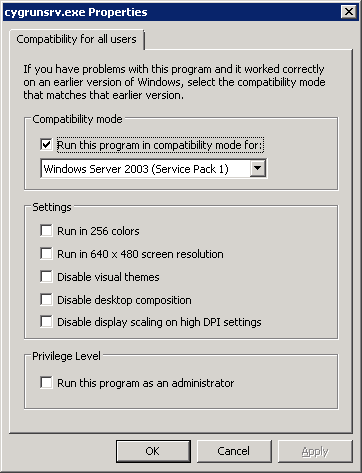
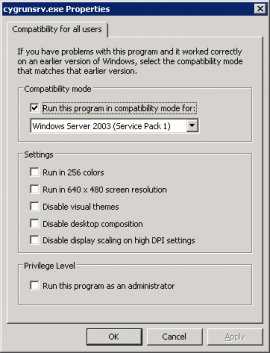
The fix was to update the settings of the cygrunsrv.exe file:

Go to the C:\Program Files (x86)\OpenSSH\bin\ path and right click cygrunsrv.exe.

Go to Properties

Go to Compatibility

Click ‘Change settings for all users’

Check the box for ‘Run this program in compatibility mode for:’

Set the dropdown to ‘Windows Server 2003 (Service Pack 1)’.

Save your changes and you should now be able to start the service.
cygrunsrv_Compatibility_settings

Adding the Administrators group within SQL Server

Posted by Rose Bush on April 1st, 2013

If you want to add the group Administrators to SQL so that any user of the Administrators Group can use SQL server, the below code, once executed, will perform this for you:

Testing dotDefender using URL String

Posted by Rose Bush on March 27th, 2013

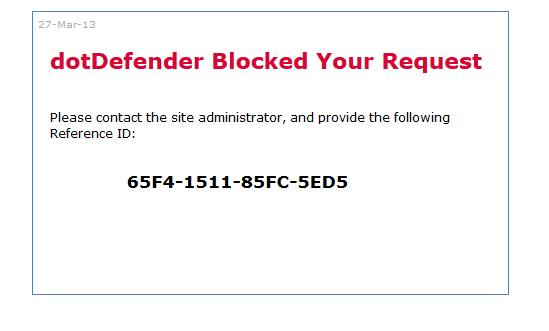
Okay, I keep ‘forgetting’ how to test if dotDefender is in place and able to block requests. Long story short, a URL can be fashioned as such:
http://example.com/?id=variable’or1=1
in order to be able to trip the expected response:

dotDefenderBlocked_01

Determining Microsoft SQL Server Version

Posted by Rose Bush on March 26th, 2013

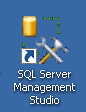
Open up SQL Server Management Studio and connect to the Database Engine (connection not pictured)

SMSSLink

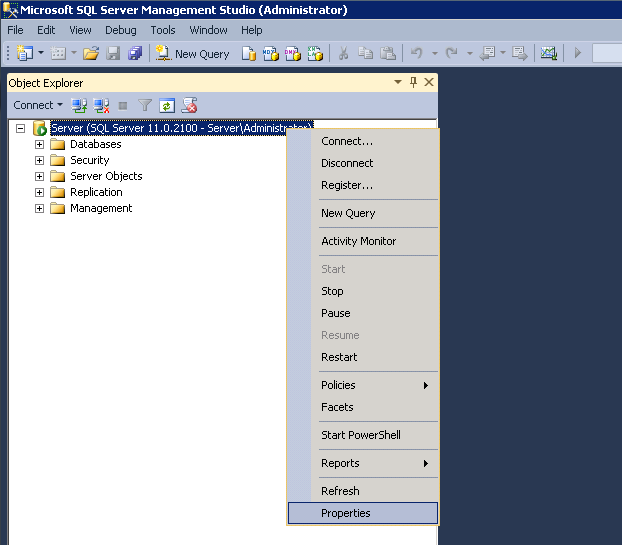
Right click on the instance and choose Properties from the menu.

SQLServerVersion_01

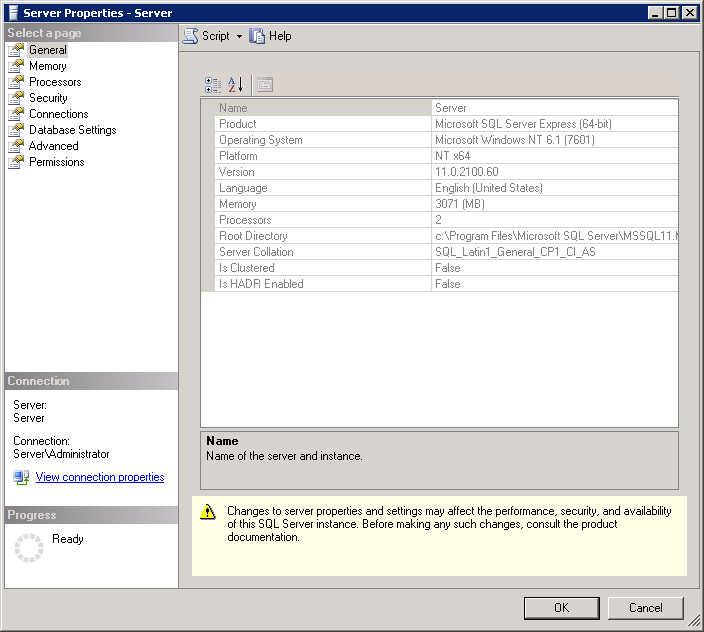
Here you can see the Product and the Version, as both are important details. If you are noting this for future reference  I recommend noting the entire line of each.  Keep in mind the Version does change as upgrades to SQL server are installed through KB’s and Windows Updates.

SQLServerVersion_02

Checking current CPU and RAM (Memory) usage on Windows 2008

Posted by Rose Bush on March 26th, 2013

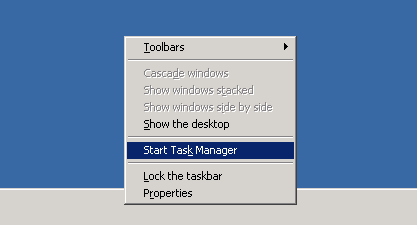
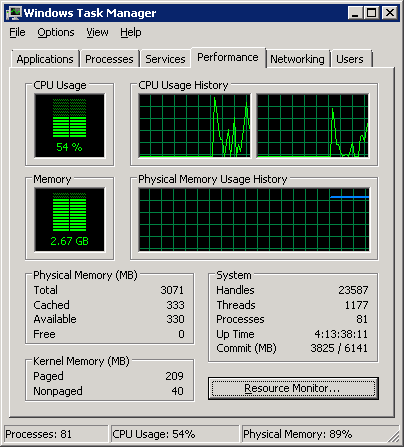
If you need to check the current CPU and RAM usage on Windows 2008, Windows 2008 R2 as well, it is a matter of right clicking on the Task Bar (Usually found on the bottom of the display) and selecting ‘Start Task Manager’:

resources_01

Here on the Windows Task Manager you can see current CPU usage, keep in mind this fluctuates a lot, as well as Memory usage.  In this screen the 2.67 is the memory in use, and the total memory is listed as 3071 (actually 3GB).  Both numbers are useful for reference   Make note of the green bar graphs as they are easy indicators:

resources_02

To resolve the error of HTTP Error 400.0 – Bad Request ASP.NET detected invalid characters in the URL , whether you are using Helicon Ape for url rewrites or not, is to make the following registry additions:

This will allow you to continue to use the & character the same as you had in IIS6.

I was getting the error of

RegAsm : error RA0000 : Unable to locate input assembly ‘c:\Windows\System32\Pay
flow_dotNET.dll’ or one of its dependencies.

when following instructions from installing the Payflow_dotNET.dll dll for .NET to use.  As I was running this command:

C:\Windows\System32>c:\Windows\Microsoft.NET\Framework64\v2.0.50727\RegAsm.exe c:\Windows\System32\Payflow_dotNET.dll

There is an issue here, is that the dll, although there, was not all that usable for a 64 bit version of .NET, so I moved the file to

C:\Windows\SysWOW64

and from that folder within a command prompt was able to move forward:

C:\Windows\SysWOW64>c:\Windows\Microsoft.NET\Framework64\v2.0.50727\RegAsm.exe Payflow_dotNET.dll
Microsoft (R) .NET Framework Assembly Registration Utility 2.0.50727.5420
Copyright (C) Microsoft Corporation 1998-2004. All rights reserved.

Types registered successfully

rsync error: some files/attrs were not transferred (see previous errors) (code 23) at main.c(1039) [sender=3.0.6]

So, apparently I had not become root just yet. Whoops. Once I had ‘sudo su -‘ed, I could run the command no problem. If this did not solve your problem, please post a comment.

Copyright © 2026 Edventures in Normalcy. All rights reserved.