Posted by Rose Bush on October 10th, 2009
To reorder products within a given category
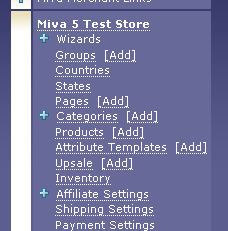
in your admin section, click on Categories on the left hand side
Then to the right of the category you want to reorder products for
click the “Edit” button
Once the page loads, click the Products tab
Then click the Assigned button
This will show you the products specific to this category
To the right of Product order is a link that should say Hide, if not click the word Show
You can now see the order products will show up on this category
If you wanted the Product 2 to be the first item, you can go to its box, change the 2 to a 1 and hit enter, not Update
You will then notice the order of products has changed on your category that you edited
Filed under: Code or Hosting | Comment (0)
Posted by Rose Bush on September 27th, 2009
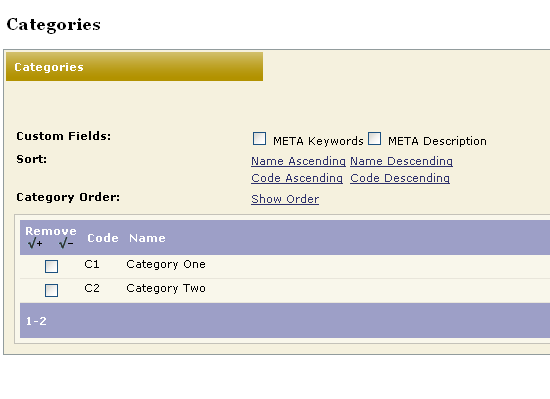
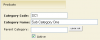
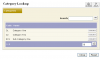
So you have some categories (image one) and this is what they look like (image two). Then you add a third Category (image three) and you see what it looks like (image four), but you feel this is a sub category, or a sub type of a main category. So what you want to do, is set it as a sub category. To do this, in the admin, on the far right, click Edit (image five). Click the Look Up button (image six) and chose the appropriate parent category (image seven). Then Click the Update button (image eight). Now, if you go to the site, the site by default looks like Image two, but if you click on Category One, it shows you the sub categories (image nine)
Filed under: Code or Hosting | Comment (0)
Posted by Rose Bush on September 9th, 2009
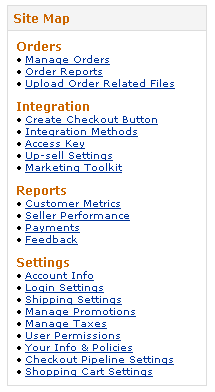
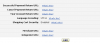
To edit your settings log into your Seller Central Account, Click on Checkout Pipeline Settings under Settings on the left hand menu. Click on the Edit button. You will find the correct settings to set these to within your Miva Merchant admin section, at the screen where you edit the Payment settings for your Checkout by Amazon module. The correct settings are listed on the bottom. Keep in mind the Merchant URL must be a secure (https) URL. Then Click Update to complete.
Filed under: Code or Hosting | Comment (0)
Posted by Rose Bush on September 4th, 2009
Schrödinger’s cat is not dead.
Filed under: Blog, Code or Hosting | Comments (6)
Posted by Rose Bush on July 1st, 2009
1 2 3 4 5 6 7 8 9 10 11 12 13 14 15 16 17 18 19 20 21 |
Server Error in '/' Application. Configuration Error Description: An error occurred during the processing of a configuration file required to service this request. Please review the specific error details below and modify your configuration file appropriately. Parser Error Message: Could not load file or assembly 'System.Web.Entity, Version=3.5.0.0, Culture=neutral, PublicKeyToken=b77a5c561934e089' or one of its dependencies. The system cannot find the file specified. Source Error: Line 46: <add assembly="System.Xml.Linq, Version=3.5.0.0, Culture=neutral, PublicKeyToken=B77A5C561934E089"/> Line 47: <add assembly="System.Data.Linq, Version=3.5.0.0, Culture=neutral, PublicKeyToken=B77A5C561934E089"/> Line 48: <add assembly="System.Web.Entity, Version=3.5.0.0, Culture=neutral, PublicKeyToken=B77A5C561934E089"/> Line 49: <add assembly="System.Data.Entity, Version=3.5.0.0, Culture=neutral,PublicKeyToken=B77A5C561934E089"/></assemblies> Line 50: </compilation> |
This error message means you are trying to load the Assemblies likely found in .NET 3.5 Service pack one and the server you are on does not support nor include it. Easy to fix, download the zip file below, unzip it, create a folder named “bin” sans quotes in your webroot and place the 2 files within the zip into that folder. That’s it. I have taken these files from a server I had running the correct version. As with any download, be cautious and use at your own risk.
Click here for the zip file.
Filed under: Code or Hosting | Comments (4)
Posted by Rose Bush on June 29th, 2009
Scripts seem to have been upgraded but the backend was not, so the scripts are looking for a field that does not exist. From my understanding may be related to core 14.
Filed under: Code or Hosting | Comment (0)
Posted by Rose Bush on June 28th, 2009
Stop hotlinking (no Image):
|
|
RewriteEngine on RewriteCond %{HTTP_REFERER} !^$ RewriteCond %{HTTP_REFERER} !^http://(www\.)?example.com(/)?.*$ [NC] RewriteCond %{HTTP_REFERER} !^http://(www\.|images\.)?google.(de|com|at|pl|fr|nl|it|com.tr|es|ch|be|gr|com.br|lu|fi|pt|hu|hr|bg|com.mx|si|sk|ro|ca|co.uk|cl|com.ar|se|cz|dk|co.th|com.co|lt|co.id|co.in|co.il|com.eg|cn|co.ve|ru|co.jp|com.pe|com.au|co.ma|co.za|com.ph|com.sa|ie|co.kr|no|com.ec|com.vn|lv|com.mt|com.uy|ae|ba|co.nz|com.ua|co.cr|ee|com.do|com.tw|com.hk|com.my|com.sv|com.pr|lk|com.gt|com.bd|com.pk|is|li|com.bh|com.ni|com.py|com.ng|com.bo|co.ke|hn|com.sg|mu|ci|jo|nu|com.jm|com.ly|co.yu|tt|com.kh|ge|com.na|com.et|sm|cd|gm|com.qa|dj|com.cu|com.pa|gp|az|as|pl|mn|ht|md|am|sn|je|com.bn|com.ai|co.zm|ma|rw|co.ug|com.vc|com|at|com.gi|to|com.om|kz|co.uz)(/)?.*$ [NC] RewriteRule .*\.(gif|jpe?g|png|bmp)$ [F,NC] |
Stop hotlinking (replacing Image):
|
|
RewriteEngine on RewriteCond %{HTTP_REFERER} !^$ RewriteCond %{HTTP_REFERER} !^http://(www\.)?example.com(/)?.*$ [NC] RewriteCond %{HTTP_REFERER} !^http://(www\.|images\.)?google.(de|com|at|pl|fr|nl|it|com.tr|es|ch|be|gr|com.br|lu|fi|pt|hu|hr|bg|com.mx|si|sk|ro|ca|co.uk|cl|com.ar|se|cz|dk|co.th|com.co|lt|co.id|co.in|co.il|com.eg|cn|co.ve|ru|co.jp|com.pe|com.au|co.ma|co.za|com.ph|com.sa|ie|co.kr|no|com.ec|com.vn|lv|com.mt|com.uy|ae|ba|co.nz|com.ua|co.cr|ee|com.do|com.tw|com.hk|com.my|com.sv|com.pr|lk|com.gt|com.bd|com.pk|is|li|com.bh|com.ni|com.py|com.ng|com.bo|co.ke|hn|com.sg|mu|ci|jo|nu|com.jm|com.ly|co.yu|tt|com.kh|ge|com.na|com.et|sm|cd|gm|com.qa|dj|com.cu|com.pa|gp|az|as|pl|mn|ht|md|am|sn|je|com.bn|com.ai|co.zm|ma|rw|co.ug|com.vc|com|at|com.gi|to|com.om|kz|co.uz)(/)?.*$ [NC] RewriteRule \.(gif|jpe?g|png|bmp)$ /images/humiliatingimage.gif [L,NC] |
Force traffic to WWW:
|
|
RewriteEngine On RewriteCond %{HTTP_HOST} !www.example.com RewriteRule ^.*$ http://www.example.com%{REQUEST_URI} [R] |
Force traffic to new Domain:
|
|
RewriteEngine on RewriteCond %{HTTP_HOST} ^www.example.com$ [NC] RewriteRule ^(.*)$ http://www.example.net/$1 [R=301,L] |
Filed under: Code or Hosting | Comment (0)
Posted by Rose Bush on June 17th, 2009
This post is primarily for when going from 4-5 to find out what module the missing one was.
Filed under: Code or Hosting | Comment (0)
Posted by Rose Bush on May 22nd, 2009
For all of those like me that can never remember, when looking for the OINF page, look to the OCST and ORDL pages instead.
If customer is not logged in -> OINF Goes to ORDL
If customer is logged in -> OINF Goes to OCST
Filed under: Code or Hosting | Comment (0)
Posted by Rose Bush on February 23rd, 2009
To edit your settings log into your PayPal Manager Account, Click on Service Settings, and then Click on Configuration. You will find the correct settings to set these to within your Miva Merchant admin section, at the screen where you edit the Payment settings for your Verisign Payflow Link module.
Filed under: Code or Hosting | Comment (0)