Posted by Rose Bush on September 27th, 2009
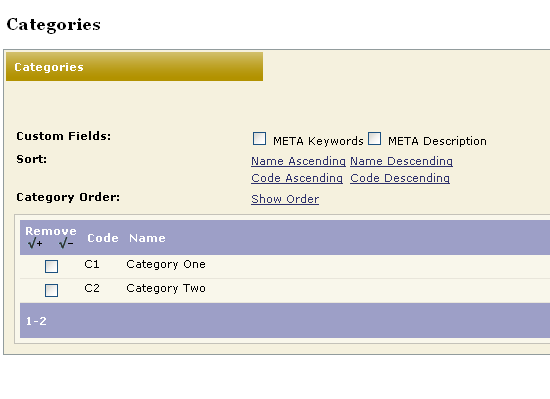
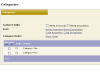
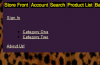
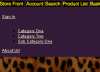
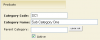
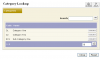
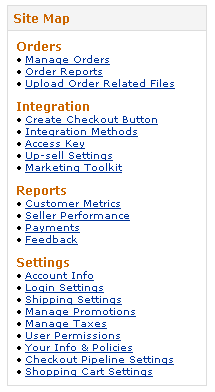
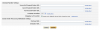
So you have some categories (image one) and this is what they look like (image two). Then you add a third Category (image three) and you see what it looks like (image four), but you feel this is a sub category, or a sub type of a main category. So what you want to do, is set it as a sub category. To do this, in the admin, on the far right, click Edit (image five). Click the Look Up button (image six) and chose the appropriate parent category (image seven). Then Click the Update button (image eight). Now, if you go to the site, the site by default looks like Image two, but if you click on Category One, it shows you the sub categories (image nine)
Filed under: Code or Hosting | Comment (0)
Posted by Rose Bush on September 9th, 2009
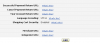
To edit your settings log into your Seller Central Account, Click on Checkout Pipeline Settings under Settings on the left hand menu. Click on the Edit button. You will find the correct settings to set these to within your Miva Merchant admin section, at the screen where you edit the Payment settings for your Checkout by Amazon module. The correct settings are listed on the bottom. Keep in mind the Merchant URL must be a secure (https) URL. Then Click Update to complete.
Filed under: Code or Hosting | Comment (0)
Posted by Rose Bush on September 4th, 2009
Schrödinger’s cat is not dead.
Filed under: Blog, Code or Hosting | Comments (6)